Scale modes
True Scale · Enhanced Detail
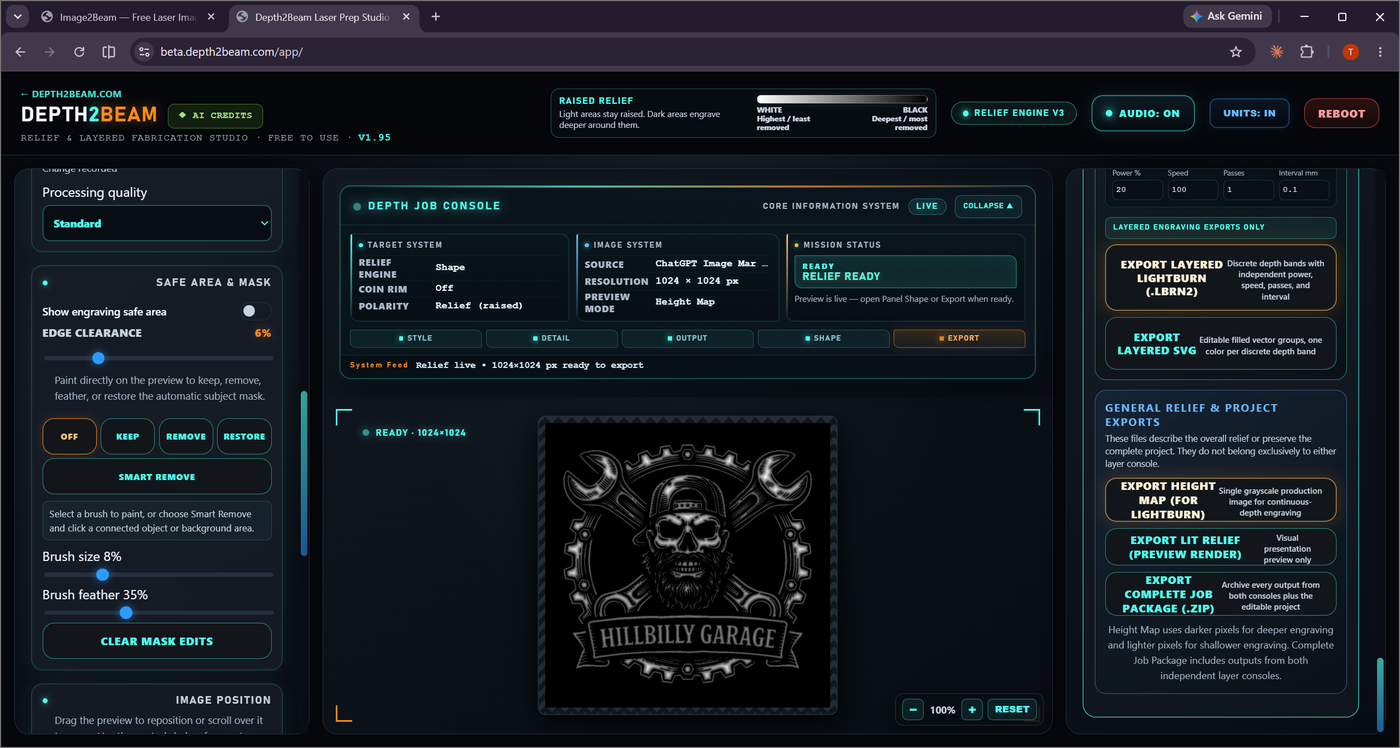
The Export step isn't a single "download" button — it's four independent consoles, each producing files for a different physical process. Here's every format Depth2Beam can hand you, and what each one is actually for.
| Export | From | Format | Use it for |
|---|---|---|---|
| 3D Relief | Interactive 3D Relief | .STL | CNC, 3D printing, molds, 3D software |
| Stacked Layers | Stacked Layers workflow | .zip (SVG/DXF) | Cutting and physically stacking plywood, cardstock, or acrylic layers |
| Layered LightBurn | Layered Relief workflow (Beta) | .lbrn2 | Multi-pass depth engraving into one piece of material |
| Layered SVG | Layered Relief workflow (Beta) | .svg | Editable vector groups, one color per depth band |
| Height Map | General Exports | Grayscale image (8-bit) | Single continuous-depth engrave in LightBurn |
| Height Map — 16-bit | General Exports | Grayscale PNG (16-bit) | 65,536 depth levels instead of 256 — CNC, CAM, and other tools that read true 16-bit grayscale |
| Lit Relief | General Exports | Rendered image | Presentation / preview only — not for engraving |
| Complete Job Package | General Exports | .zip | Every output from both layer consoles, plus the editable project file |
These are the two exports people mix up most, because both start from the same posterized depth bands. They produce physically different results.
Cuts each depth band as its own vector layer. You cut them separately — out of plywood, cardstock, or acrylic — and physically glue or pin them together. The depth comes from the real thickness of the stacked material, not from engraving. Includes kerf compensation for your laser's cut width.
See Stacked Layers →Builds one LightBurn project with every depth band as its own image layer, engraved into a single piece of material at independent power, speed, and pass settings per layer — no cutting or stacking involved. Ships with a material-and-wattage-aware auto layer profile.
See Layered Relief →The Interactive 3D Relief preview lets you set real millimeter dimensions and toggle between True Scale and an Enhanced Detail mode before exporting an .STL for CNC routing, 3D printing, mold-making, or any other 3D software.
See Interactive 3D & STL →Export Height Map gives you a single grayscale image for LightBurn's continuous-depth engraving mode — darker pixels engrave deeper, lighter pixels shallower. Export Height Map — 16-bit PNG writes the same relief at full 65,536-level precision instead of the usual 256, built directly as a true 16-bit grayscale file rather than a color-image trick — for CNC/CAM software and any other tool that reads real 16-bit height data; most laser software, including LightBurn, still expects the standard 8-bit version. Export Lit Relief saves the raking-light preview render itself, for showing a client or a listing photo — it's a presentation image, not a production file. Export Complete Job Package zips up every output from both the Stacked Relief and Layered Engraving consoles — including both height map bit depths — alongside the editable project file, so you (or a customer) have everything from one job in a single archive.